
How to add a countdown widget on iPhone
iOS has no built-in countdown widget, so you need an app. In Miracal it's free: pin an event, task or birthday as a countdown, then touch and hold the home screen, tap Edit → Add Widget, search for Miracal and pick the Countdown widget. It shows how many days are left – for the dates already in your calendar.


Step 1: Pin what you're counting down to
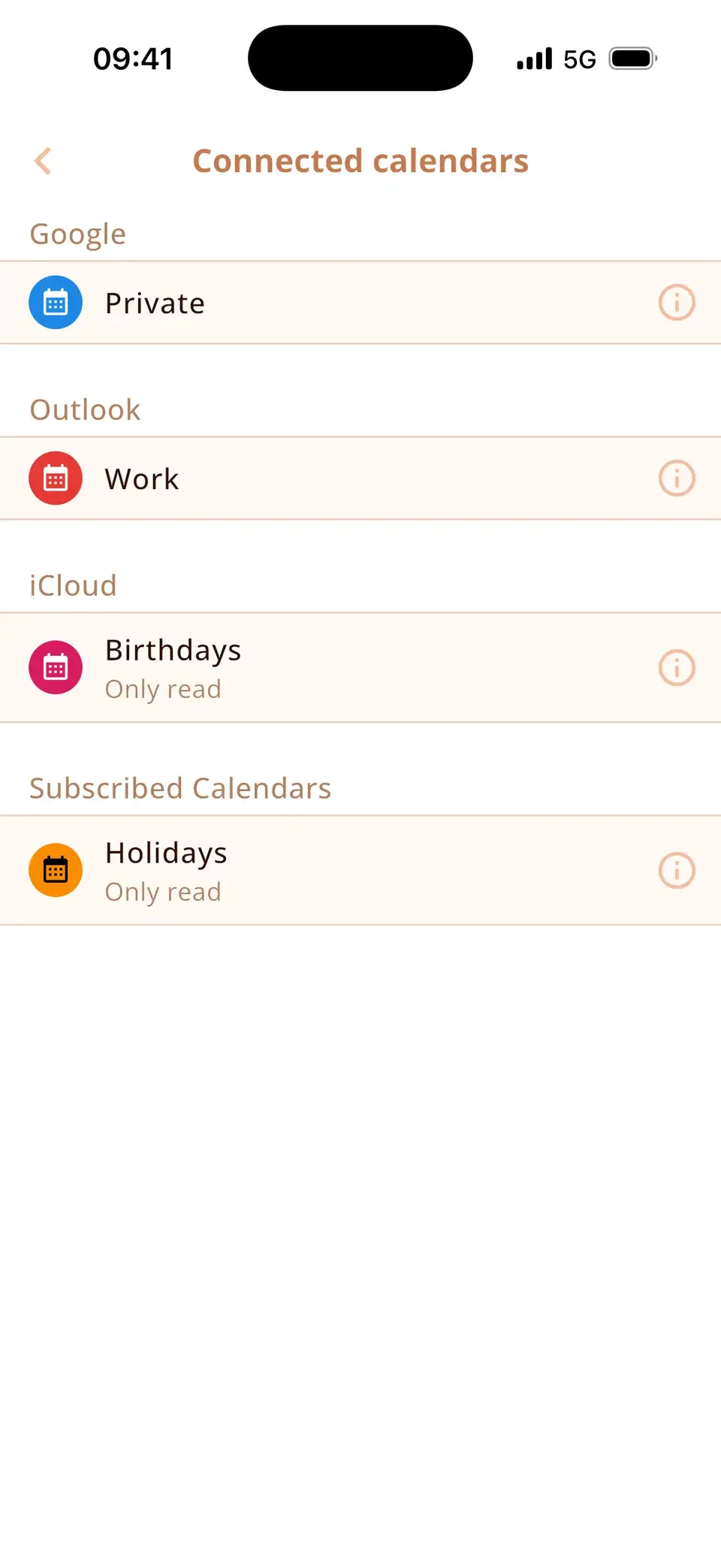
- Install Miracal. It shows the calendars already on your iPhone – iCloud, Google, Outlook – plus your tasks and the birthdays from your contacts.
- Open the event, task or contact you're looking forward to, or create a new event – for example “Vacation” on its first day.
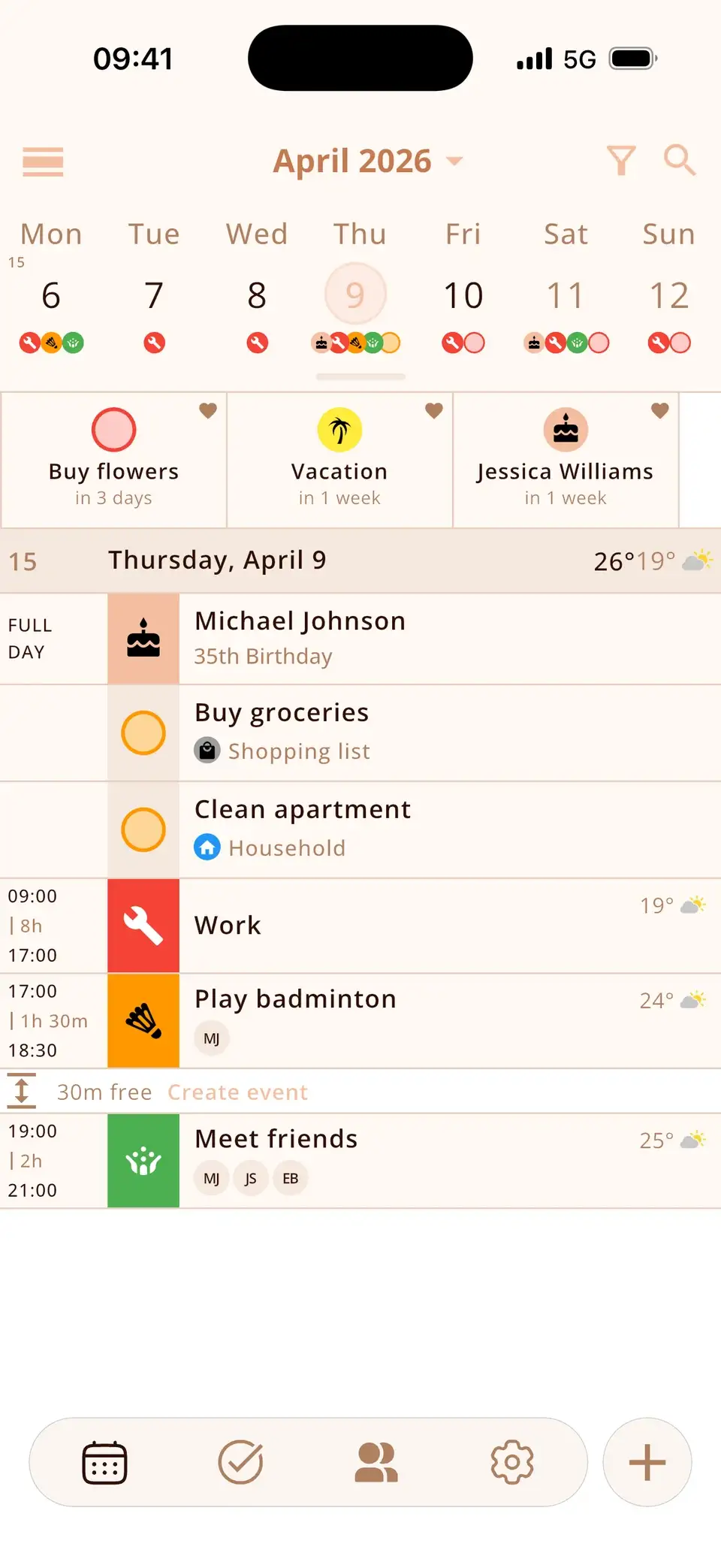
- Tap the heart. In the calendar you can also touch and hold an entry and choose Countdown.
The entry now sits at the top of your calendar with the days left. Pin as many as you like – the vacation, the exam and the next birthday. For a repeating event, the heart pins just that one date.
Step 2: Add the Countdown widget
- Touch and hold an empty spot on the home screen until the apps jiggle.
- Tap Edit in the top-left corner, then Add Widget. On iOS 17 and earlier, tap the + instead.
- Search for Miracal and swipe to the Countdown widget.
- Choose small, medium or large and tap Add Widget.
- Drag the widget where you want it and tap Done.
Tip: drag the Countdown widget onto another Miracal widget of the same size to build a stack – swipe between your countdowns and today's events.


Small, medium or large?
- Small – your next three countdowns.
- Medium – up to six, in two columns.
- Large – up to twenty.
Each entry shows its icon, its title and the time left – “in 3 days”, “in 1 week”, “in 2 months”. Until you've pinned something, the widget says “No countdowns yet”.
Why count down from your calendar
Most countdown apps make you type every date a second time. Miracal counts down to what's already in your calendar: the flight in Google Calendar, the concert in iCloud, the deadline in Outlook – and to birthdays from your contacts and your own tasks.
Move the event and the countdown moves with it. Past events and completed tasks leave the countdown list on their own, so the widget never fills up with old dates.
Ideas for your countdown widget
- Vacation, a trip or a festival
- Birthdays – Miracal takes them from your contacts, with the age they're turning
- Exams, a thesis deadline or the first day at a new job
- A wedding, a due date or moving day
- Christmas, New Year or a concert
Only need a quick number? The free online countdown works without an app.
Can the countdown go on the lock screen?
Not as a countdown – the Countdown widget is made for the home screen. On the lock screen, Miracal's Next events widget shows what's coming up: as a line above the clock or as a block below it. Round buttons next to it create a new event or task with one tap.


Countdown widget on Android
- Pin your countdowns in Miracal as described above.
- Touch and hold an empty spot on the home screen and tap Widgets.
- Find Miracal, touch and hold the Countdown widget and drag it onto the home screen.
- To resize it, touch and hold the widget and drag the handles.
Widget empty or not updating?
- “No countdowns yet”: pin at least one event, task or birthday in the app first.
- Old numbers: iOS refreshes widgets on its own schedule. Opening Miracal updates them right away; Low Power Mode can delay updates.
- An event is missing: check that its calendar is switched on in Miracal. The free version syncs one calendar, PRO all of them.
- Still stuck: remove the widget and add it again.
Try Miracal for free
Calendar, tasks, birthdays and weather in one app – no account, no ads.


Frequently asked questions
Does the iPhone have a built-in countdown widget?
No. The Clock app has timers for minutes and hours, but iOS has no widget that counts down the days to a date. For that you need an app – Miracal's Countdown widget is free.
Is the countdown widget free?
Yes. Countdowns and the Countdown widget are part of Miracal's free version – no ads, no account.
How many countdowns can the widget show?
Three in the small widget, six in medium and up to twenty in large.
Can I count down to a birthday?
Yes. Miracal shows the birthdays from your contacts. Tap the heart on a contact and the next birthday appears in the Countdown widget. There's also a separate Birthdays widget for everyone coming up.
Does it work with Google Calendar and Outlook?
Yes – with every calendar on your iPhone, including Google and Outlook. The free version syncs one calendar; with PRO you get all of them.
Count down to what you're looking forward to.
Free for iPhone and Android.
Free download · iPhone & Android