
How to add a calendar widget on iPhone
Touch and hold the home screen, tap Edit → Add Widget, pick a calendar app and a size, then tap Add Widget. Below you'll find the lock screen, how to get Google and Outlook into one widget, Android, and what to do when a widget shows no events.
Add a widget to the home screen
- Touch and hold an empty spot on the home screen until the apps jiggle.
- Tap Edit in the top-left corner, then Add Widget. On iOS 17 and earlier, tap the + instead.
- Search for the app – for example Calendar or Miracal.
- Swipe to choose a size (small, medium or large) and tap Add Widget.
- Drag the widget to where you want it and tap Done.
Tip: drag one widget onto another of the same size to build a stack you can swipe through – for example “today” on top and “upcoming events” underneath.


Show your calendar on the lock screen
- Unlock the iPhone with Face ID or Touch ID, but stay on the lock screen.
- Touch and hold the lock screen and tap Customize → Lock Screen.
- Tap the widget area below the time and choose a calendar widget, for example your next event.
- Tap Done.
Lock-screen widgets are small and single-colour, so they work best for one thing: what's next. Every time you pick up your phone, you see it without unlocking.


Google Calendar and Outlook in one widget
Google's and Microsoft's own apps have widgets too, but each shows only its own calendar. To see everything in one widget, add the accounts to the iPhone itself:
- Open Settings → Apps → Calendar → Calendar Accounts (on iOS 17: Settings → Calendar → Accounts).
- Tap Add Account and choose Google, Microsoft Exchange or Outlook.com.
- Sign in and turn on Calendars.
From then on, every calendar app that reads the iPhone's calendars sees these events – Apple's Calendar widget as well as Miracal's.
Miracal's widgets
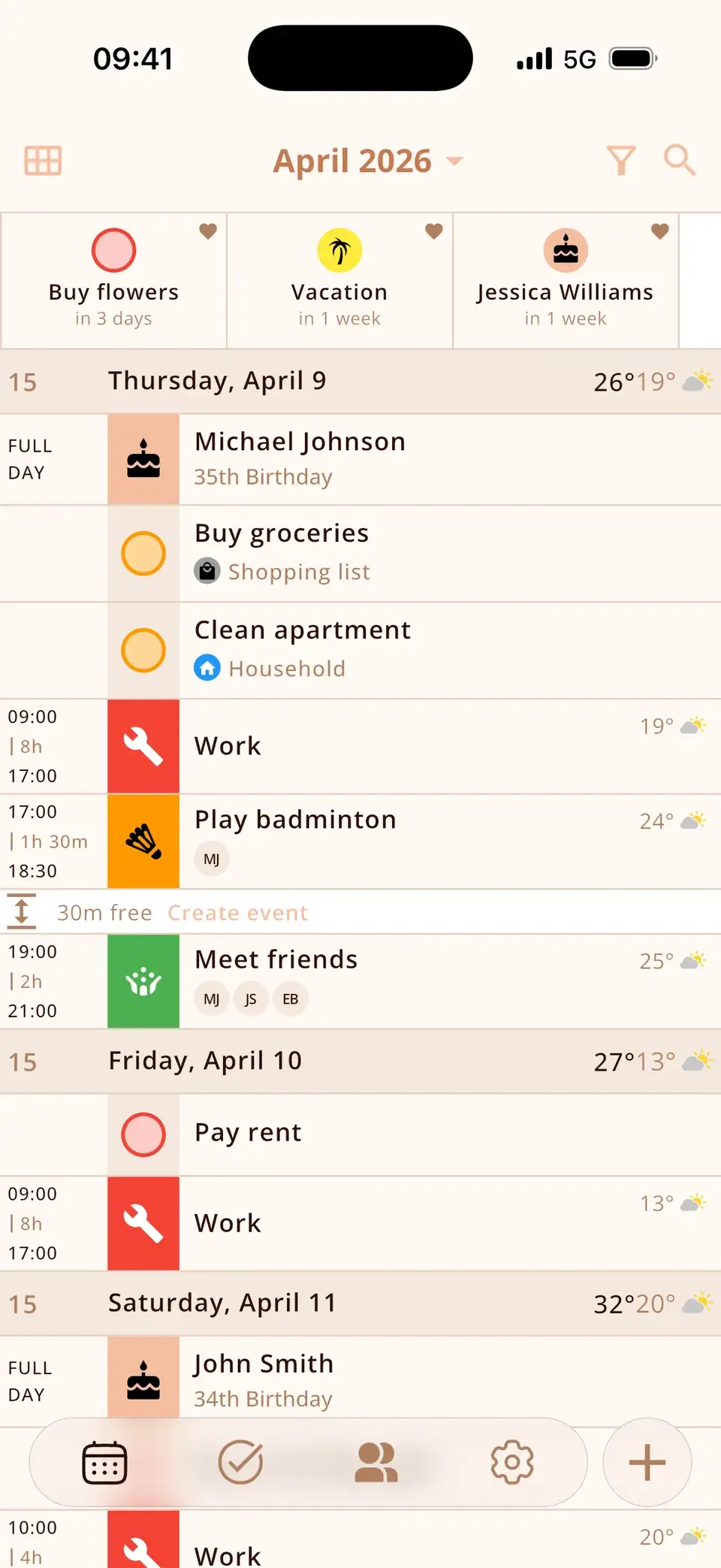
Miracal shows your events, tasks and contact birthdays in one calendar, and its widgets bring that to the home screen:
- Upcoming Events – the next days at a glance, in three sizes.
- Today & Tomorrow – both days side by side.
- Countdown – the events, tasks and birthdays you've pinned, with the days left.
- Birthdays – who has a birthday today, tomorrow or in a few days.
- Quick Add – a new event, task or contact with one tap.
- On the lock screen: your next events and quick-create buttons; on iOS 18 also controls for Control Center.
The widgets are free. The free version syncs one calendar; with PRO you get all of them, plus the weather inside the widgets.


Calendar widget on Android
- Touch and hold an empty spot on the home screen and tap Widgets.
- Find the calendar app – Google Calendar, Samsung Calendar or Miracal.
- Touch and hold the widget and drag it onto the home screen.
- To resize it, touch and hold the widget and drag the handles.
Miracal's five widgets are resizable on Android and can also be used on the lock screen.
Widget shows no events or doesn't update?
- Calendar turned off: check that the calendar is switched on in the app's calendar list.
- Account not syncing: in Settings → Apps → Calendar → Calendar Accounts, check that Calendars is on for Google or Outlook.
- Old content: iOS updates widgets on its own schedule. Opening the app usually refreshes them; Low Power Mode can delay updates.
- Still stuck: remove the widget and add it again.
Try Miracal for free
Calendar, tasks, birthdays and weather in one app – no account, no ads.


Frequently asked questions
How do I put my Google Calendar on the iPhone home screen?
Either use the widget of the Google Calendar app (it only shows Google), or add your Google account under Settings → Apps → Calendar → Calendar Accounts and use a widget that reads all iPhone calendars – Apple's Calendar widget or Miracal's.
Can I show my calendar on the iPhone lock screen?
Yes. Touch and hold the lock screen, tap Customize → Lock Screen and add a calendar widget below the time. It shows your next event.
Which calendar widget shows birthdays?
Apple's widget shows them if the Birthdays calendar is switched on. Miracal has its own birthday widget that shows who's next – taken automatically from your contacts.
Is there a countdown widget for iPhone?
Yes. Miracal's Countdown widget shows the events, tasks and birthdays you've pinned as countdowns, each with the days left – in small, medium or large. Add it like any other widget and search for Miracal.
Your whole day on your home screen.
Free for iPhone and Android.
Free download · iPhone & Android