
iPhone calendar not syncing – how to fix it
Make sure every device uses the same Apple Account and has iCloud Calendar turned on, then set Fetch New Data to Push and pull down in the calendar list to refresh. If one calendar still doesn't sync, check whether it's an iCloud calendar at all – calendars stored “On My iPhone” or “On My Mac” never sync.
Check the basics on every device
- Same Apple Account: the name at the top of Settings on the iPhone and iPad, and in System Settings on the Mac, must be the same account.
- iCloud Calendar on: on the iPhone, open Settings → your name → iCloud → Saved to iCloud and make sure calendar syncing is on. On the Mac: System Settings → your name → iCloud.
- Internet and mobile data: on mobile data, check that Calendar is allowed under Settings → Mobile Data (Cellular). Low Power Mode can also pause syncing.
- Date and time: Settings → General → Date & Time → Set Automatically should be on – a wrong clock breaks syncing.
Make the iPhone fetch new events
- Fetch New Data: Settings → Apps → Calendar → Calendar Accounts → Fetch New Data. Turn on Push and set iCloud to Push, Google to Automatically.
- Refresh by hand: in the Calendar app, tap Calendars and pull the list down until it refreshes.
- Sync range: Settings → Apps → Calendar → Sync → All Events, if older events are missing on the iPhone only.
- Restart: restart the iPhone and install the latest iOS. On older iOS versions the calendar settings are under Settings → Calendar → Accounts.
Only one calendar doesn't sync
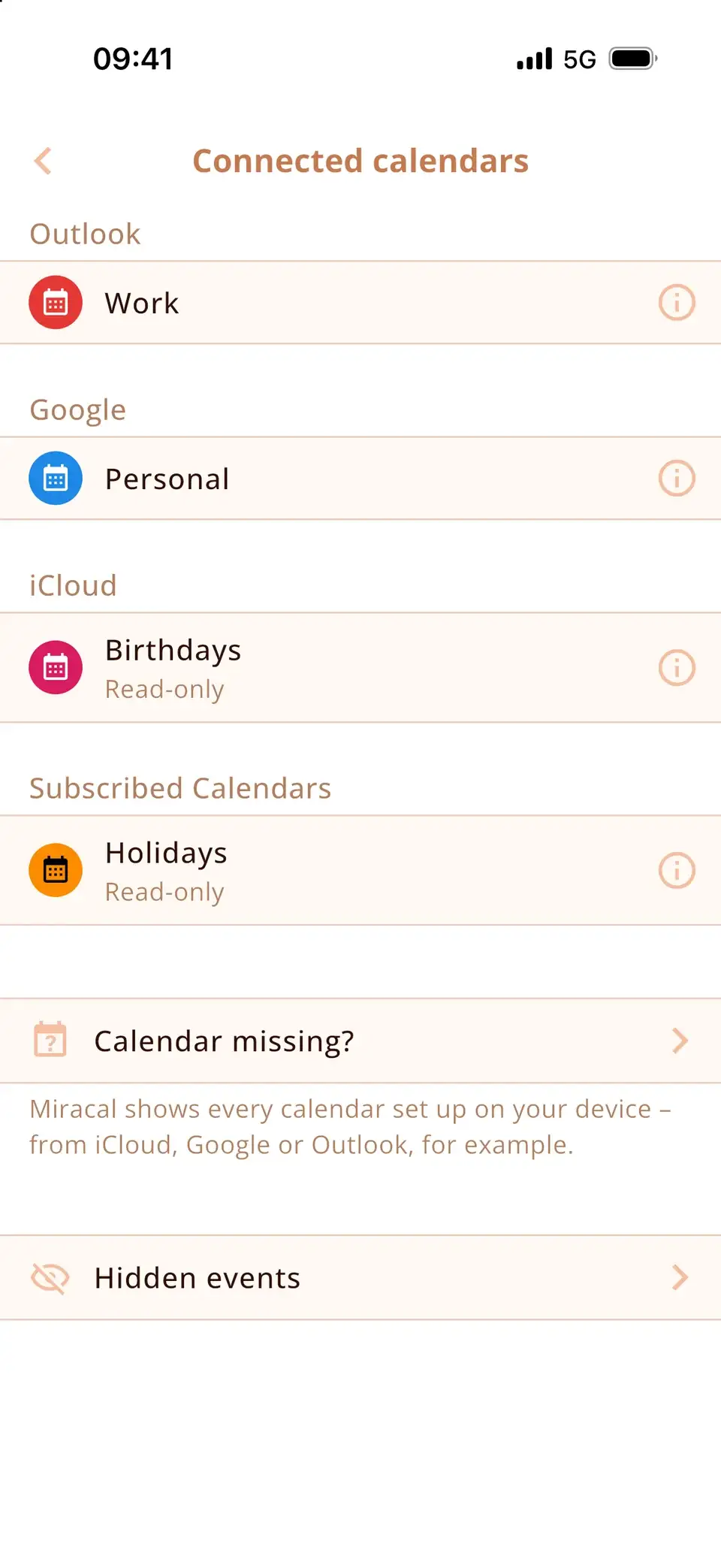
- Local calendar: in the Calendar app's list, check which heading the calendar sits under. Calendars under “On My iPhone” stay on this iPhone; on the Mac, the same applies to “On My Mac”. Create the calendar in iCloud instead and move the events there.
- Google or Outlook calendar: it syncs through its own account, not iCloud. The account has to be added on each device – see our guides for Google and Outlook.
- Shared Google calendar: it needs to be selected on Google's sync page first – here's how.
- Subscribed calendar: subscriptions refresh on their own schedule and can lag behind by hours.
Still not syncing: turn iCloud Calendar off and on
First sign in at icloud.com and check that your events are there – that's the copy that counts. Then turn calendar syncing off under Settings → your name → iCloud, wait a moment and turn it on again. If the iPhone asks what to do with the calendars on the device, removing them from the iPhone is fine: they download again from iCloud. Don't do this if events only exist on this iPhone.
Also check Apple's system status page (apple.com/support/systemstatus) – occasionally iCloud Calendar itself is down.
One view of every synced calendar
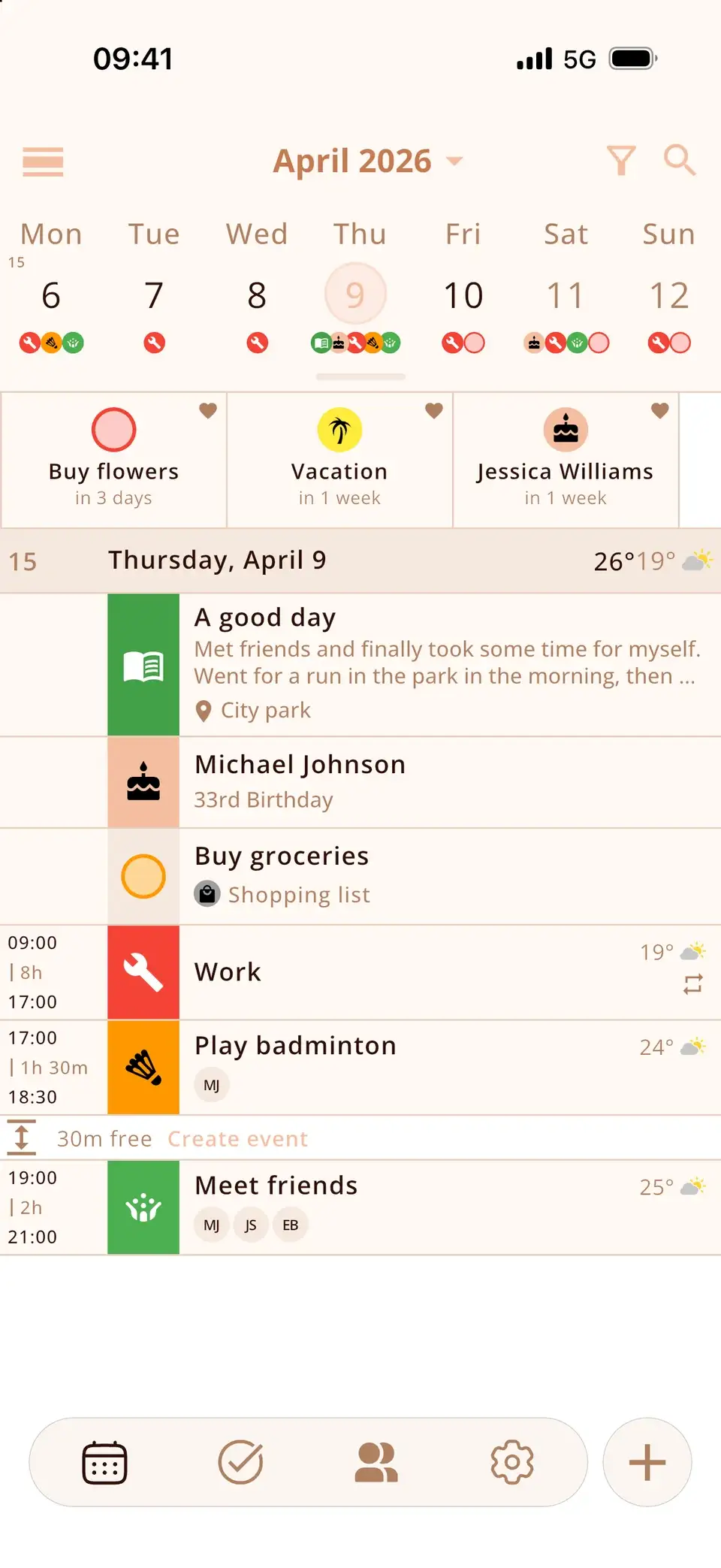
Miracal reads the calendars that are on your iPhone, so once syncing works, iCloud, Google and Outlook events appear there together – next to your tasks and the birthdays from your contacts. Miracal doesn't sync calendars itself and can't fix iCloud; it shows what the iPhone has. The free version syncs one calendar, PRO all of them.
Try Miracal for free
Calendar, tasks, birthdays and weather in one app – no account, no ads.


Frequently asked questions
Why is my iPhone calendar not syncing with my Mac?
Usually the two use different Apple Accounts, iCloud Calendar is off on one of them, or the calendar is stored “On My Mac”. Check all three; then refresh the calendar list on the iPhone.
Why do new events take so long to appear on my iPhone?
Fetch New Data is set to a long interval or Manually, or Low Power Mode is on. Set iCloud to Push and Google to Automatically in Calendar Accounts → Fetch New Data.
Will turning iCloud Calendar off delete my events?
Not from iCloud. It only removes the copy on this iPhone; when you turn it back on, the events download again. Events in calendars stored only on the iPhone are not in iCloud, so check icloud.com first.
Does iCloud sync my Google calendar to my Mac?
No. Google and Outlook calendars sync through their own accounts. Add the account on every device where you want to see the calendar.
All synced calendars in one view.
Free for iPhone and Android.
Free download · iPhone & Android