
How to change a calendar's color on iPhone
In the Calendar app, tap Calendars, tap the ⓘ next to a calendar and choose a new color – or Custom for any shade. The color applies to all events in that calendar. Apple's Calendar app can't color single events; you need a separate calendar per color.
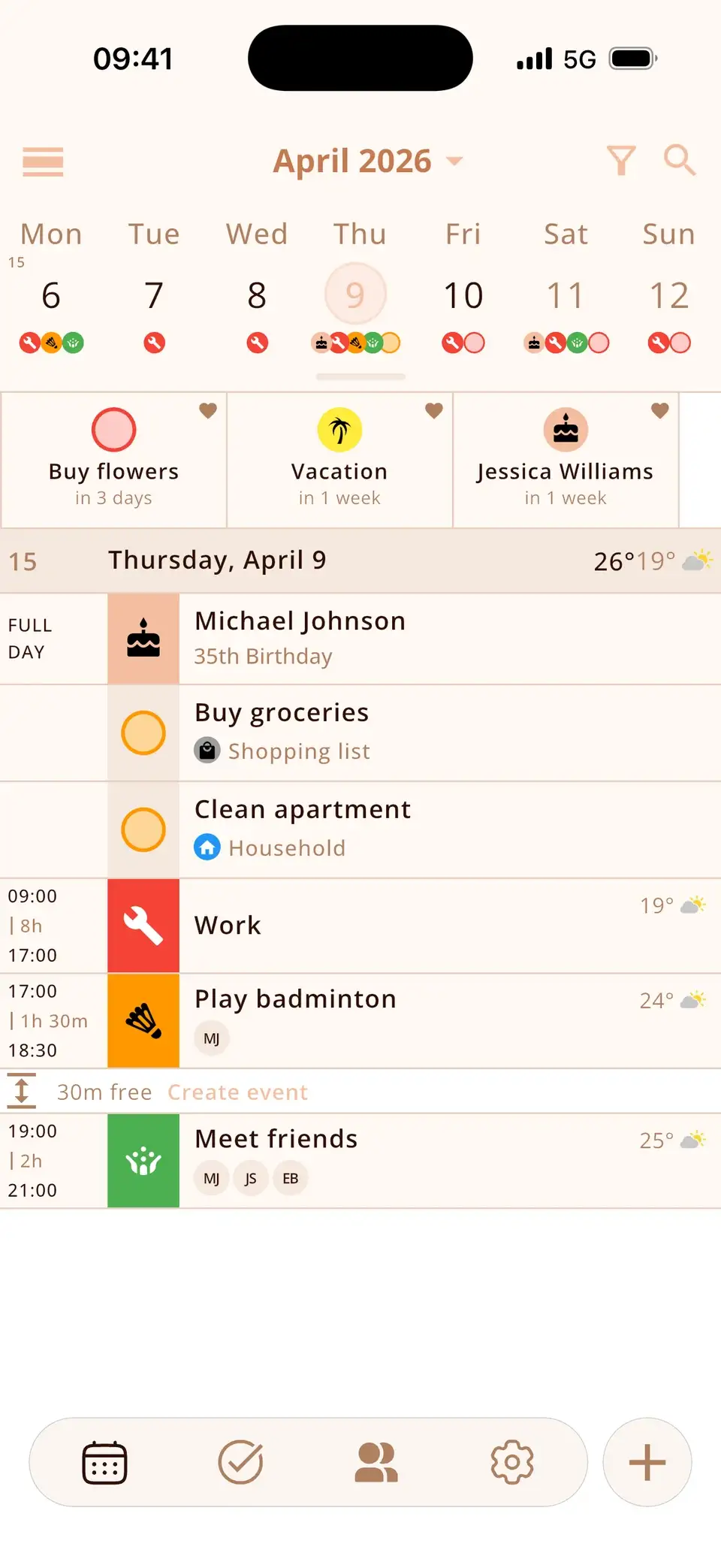
Change the color of a calendar
- Open the Calendar app and tap Calendars.
- Tap the ⓘ next to the calendar.
- Pick one of the colors, or tap Custom to choose any color.
- Tap Done.
For iCloud calendars, the new color shows up on your other Apple devices too.
Can I color single events?
Not in Apple's Calendar app – every event takes the color of its calendar. The usual workaround is one calendar per category (work, family, sport), each with its own color. Choose the calendar for each event under Calendar when you create or edit it.
Tell events apart at a glance
Miracal shows your calendars in their colors and adds a matching icon to every event automatically while you type the title – a tooth for the dentist, a ball for training. So events look different even within one calendar. The free version includes 133 icons, PRO more than 2,500.
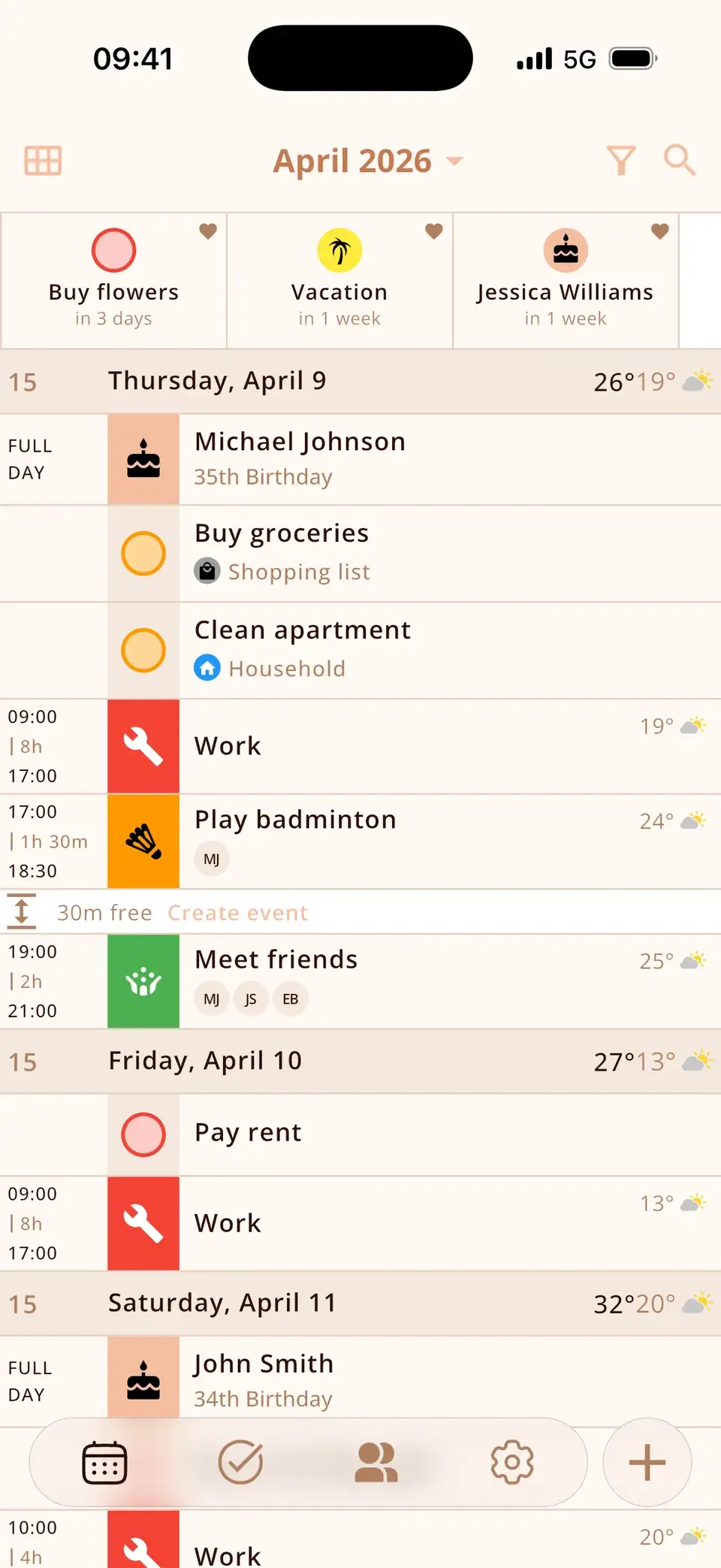
Try Miracal for free
Calendar, tasks, birthdays and weather in one app – no account, no ads.


Frequently asked questions
Why can't I change the color of a calendar on iPhone?
Some calendars, such as certain subscribed calendars, only allow limited changes. For your own iCloud, Google and Outlook calendars the ⓘ screen shows the color options.
Do color changes sync to my iPad and Mac?
For iCloud calendars, yes. For other accounts it depends on the provider.
How many colors can I choose from?
Seven preset colors plus Custom, where you can pick any color.
A calendar you can read at a glance.
Free for iPhone and Android.
Free download · iPhone & Android